EDTR Apps Start creating

EDTR Apps

Small, private editors for everyday making.

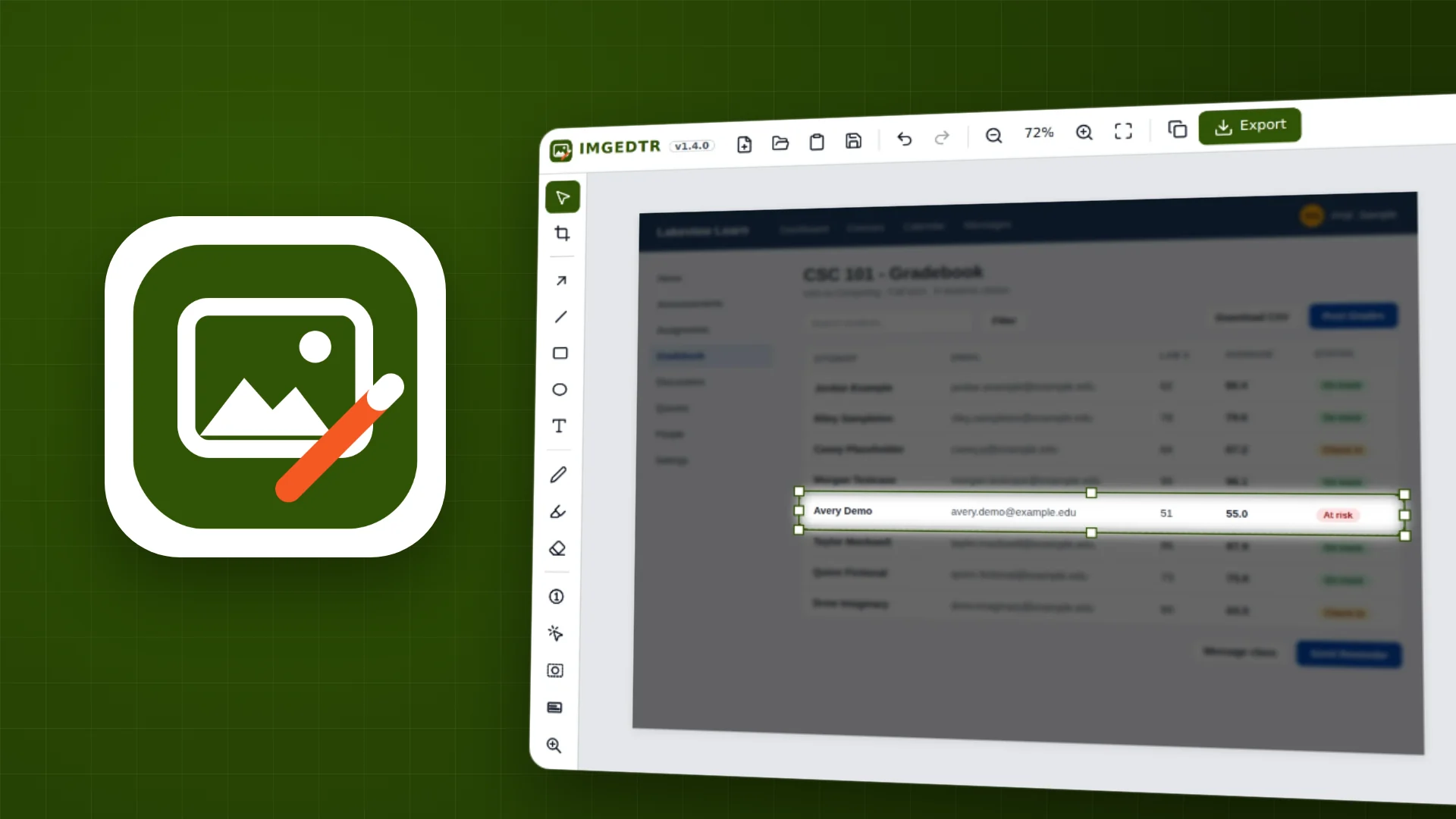
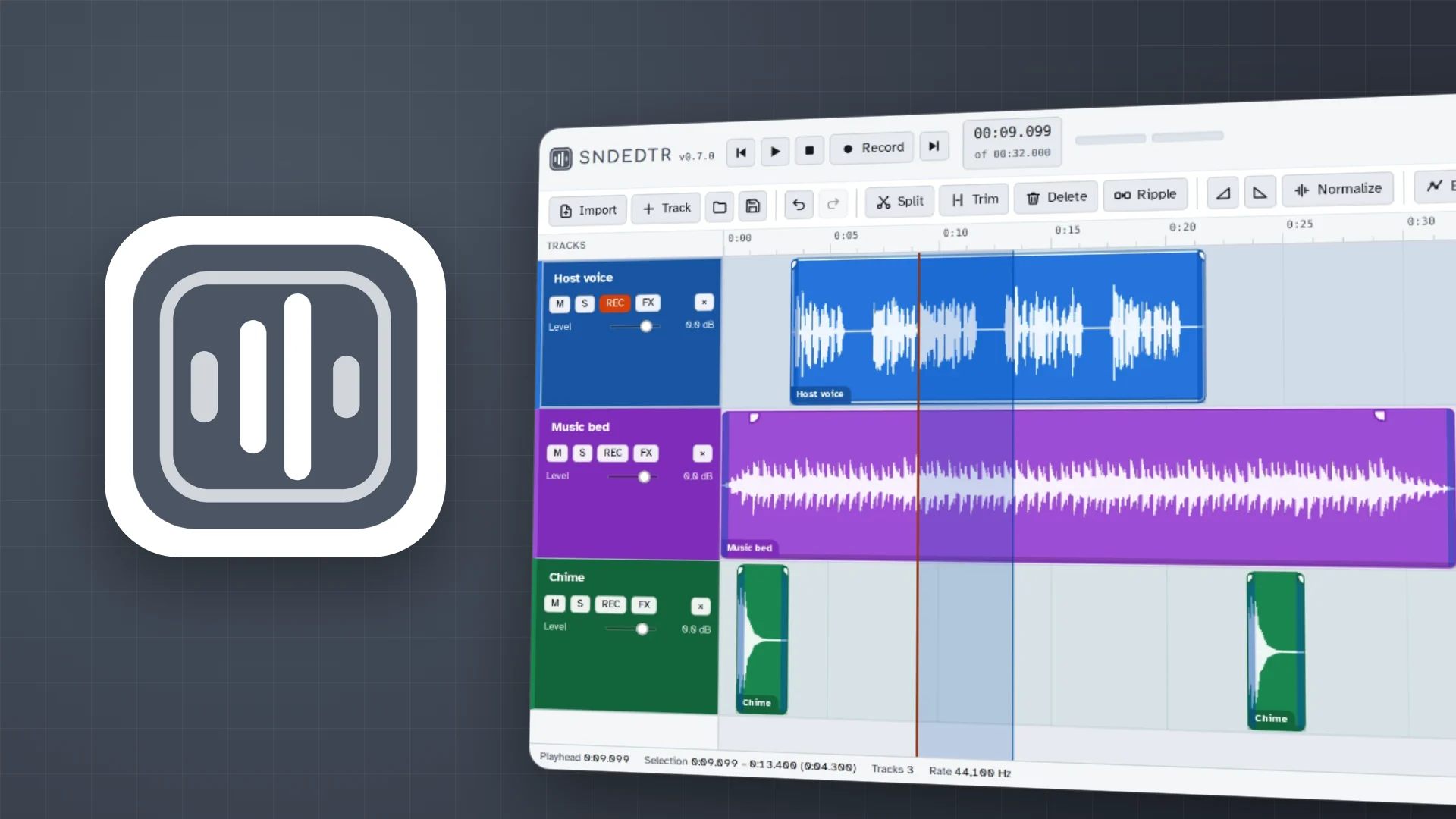
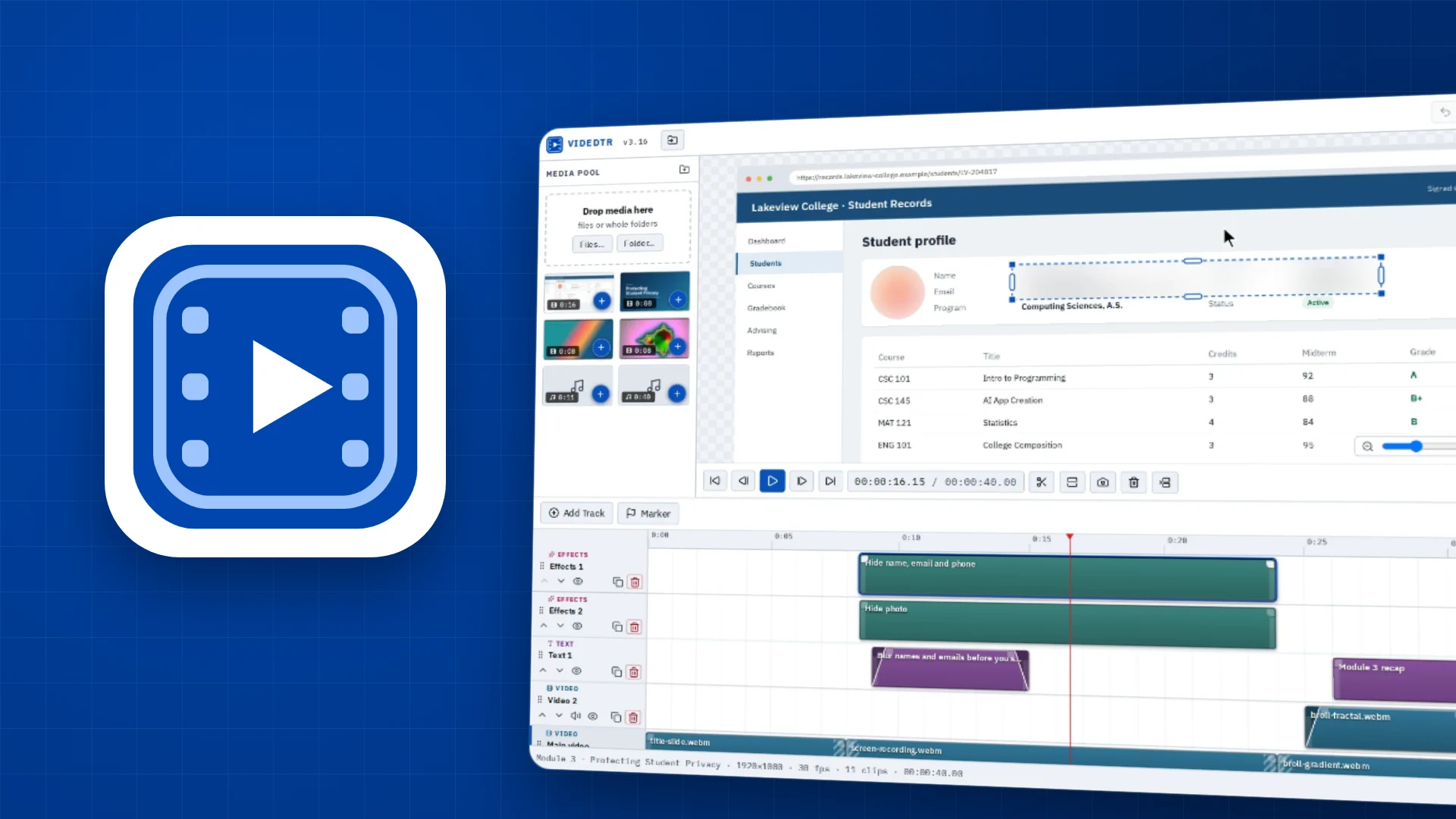
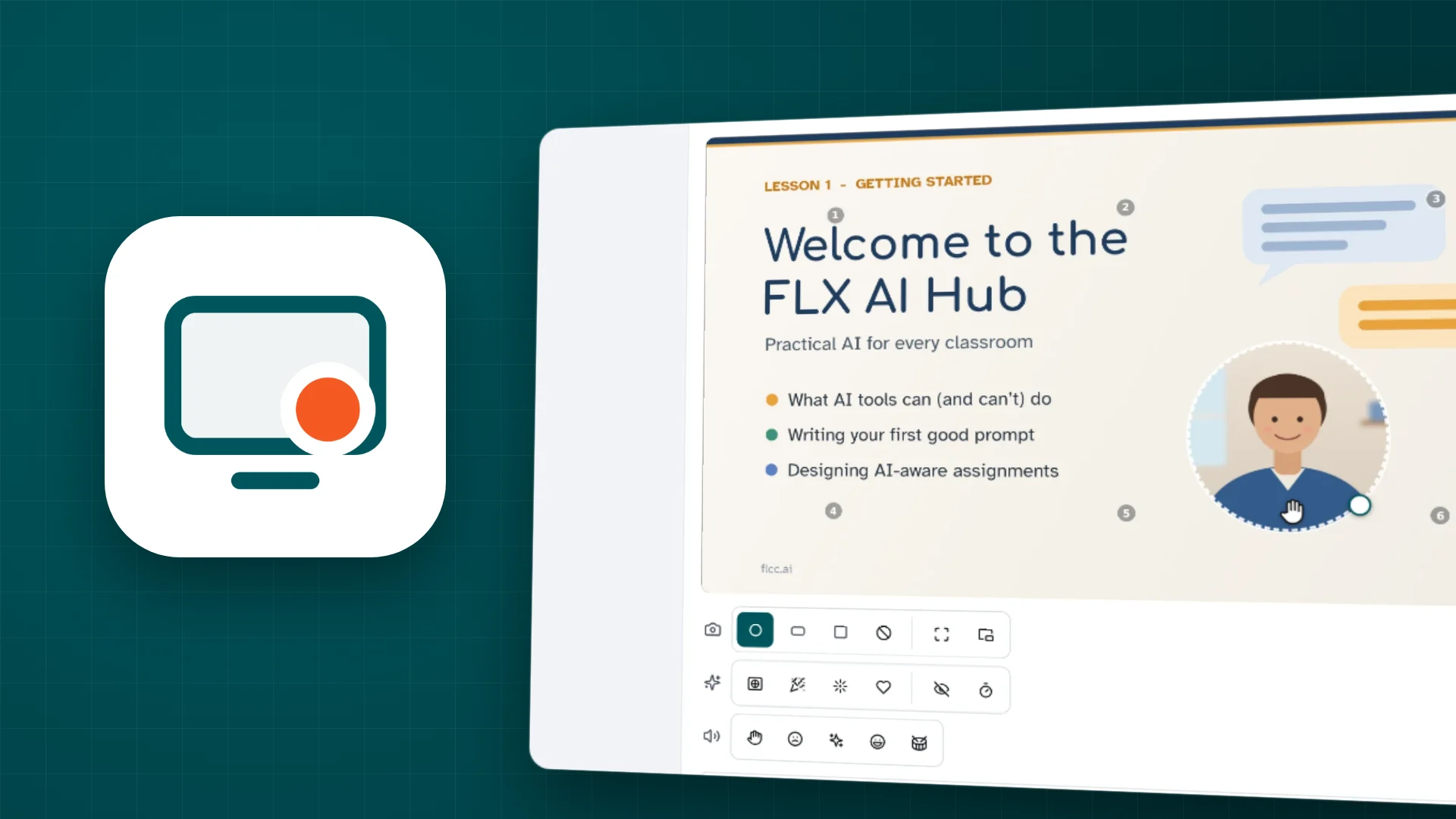
Twelve free tools that run right in your browser: text and code, PDFs, images, sound, video, screen recording, vector art, 3D models, page layout, animated lessons, a whiteboard and a teleprompter. No account, no uploads, no installer. Open one and start making.

Built small on purpose

These aren't Photoshop, Premiere or InDesign, and they aren't trying to be. They're for the jobs most of us actually have: blur a name in a screenshot, sign a form, trim a recording, lay out a flyer. Quick to learn, quick to finish.

  • Private by design

    Your files never leave your device. Each app opens files right in your browser and saves them back to your computer. There's no server to upload to, no account to make and nothing to sign in to. Even the crash backups stay in your own browser.

  • Light and quick

    Each app is a web page that opens in a moment on a Chromebook, a laptop or a tablet. Once you've opened it, it keeps working with no internet, and you can install it to sit in your dock like any other app.

  • Made for the job

    Every tool is built for people who don't need professional software. Clear buttons, plain words, a tour of the best features and sensible starting points mean you spend your time making, not learning menus.

Learn one, and you know them all

  • The same layout: tools on the left, your work in the middle, settings on the right.
  • The same help: the ? button opens a tour, keyboard shortcuts and what's new.
  • Accessible from the start: full keyboard use, screen reader labels, high-contrast colors and dark mode.
  • Safety nets: undo in every editor, and in most a backup if the tab closes mid-project.

Pick a tool

Every app is free, opens in a new tab, and comes with its own short tour.

    How it started

    1. July 2026

      One editor for one class

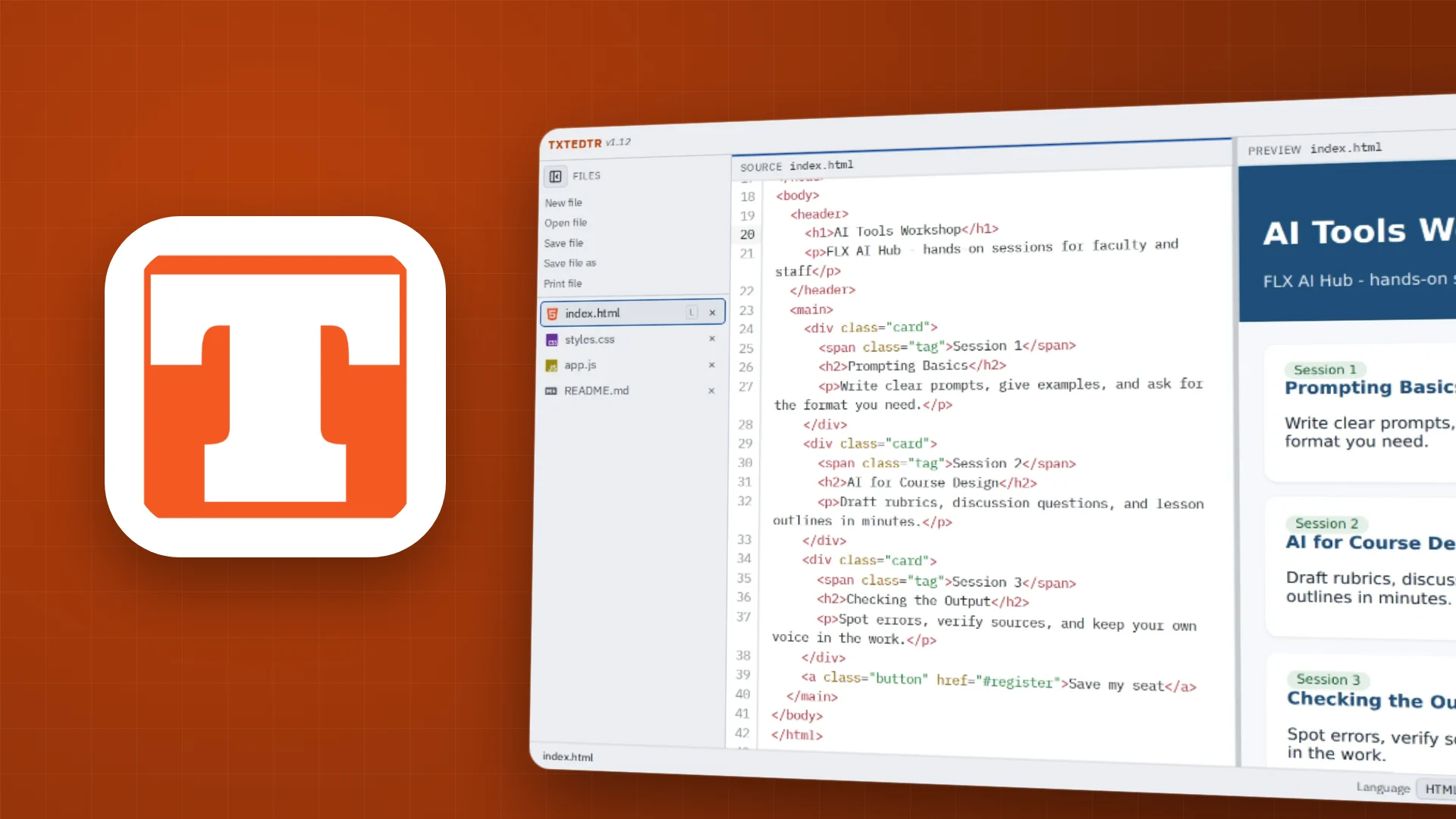
      It began with TXTEDTR. Dave Ghidiu, who teaches computing at Finger Lakes Community College, needed a text editor for his vibe coding course: one with a live preview right beside the code, no frills to get lost in, and a careful eye for the things that quietly break a beginner's code, like curly quotes and invisible spaces pasted in from a word processor.

    2. Summer into fall

      Then the tutorials needed tools

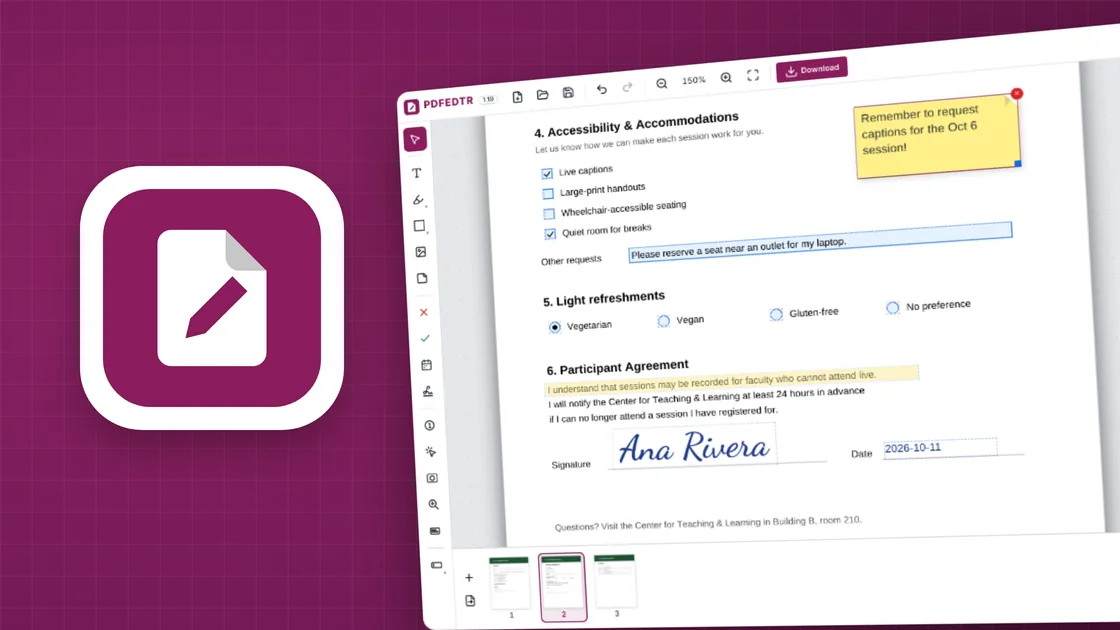
      Making lessons and how-to guides meant marking up screenshots, recording the screen, cutting video, cleaning up audio and fixing PDFs. Each gap became an app, built the same way: small, private and in the browser.

    3. September and October

      A family, not a pile

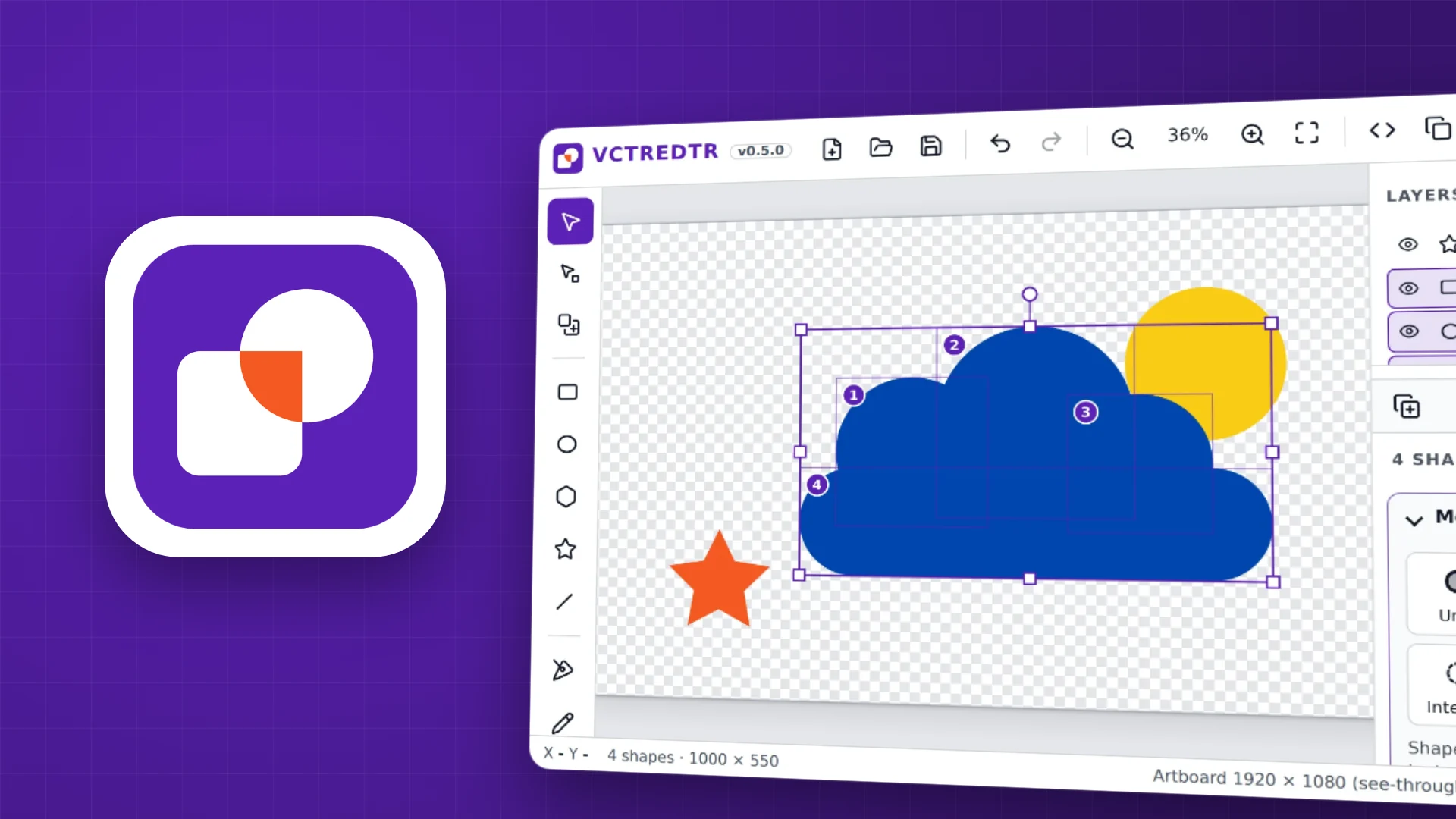
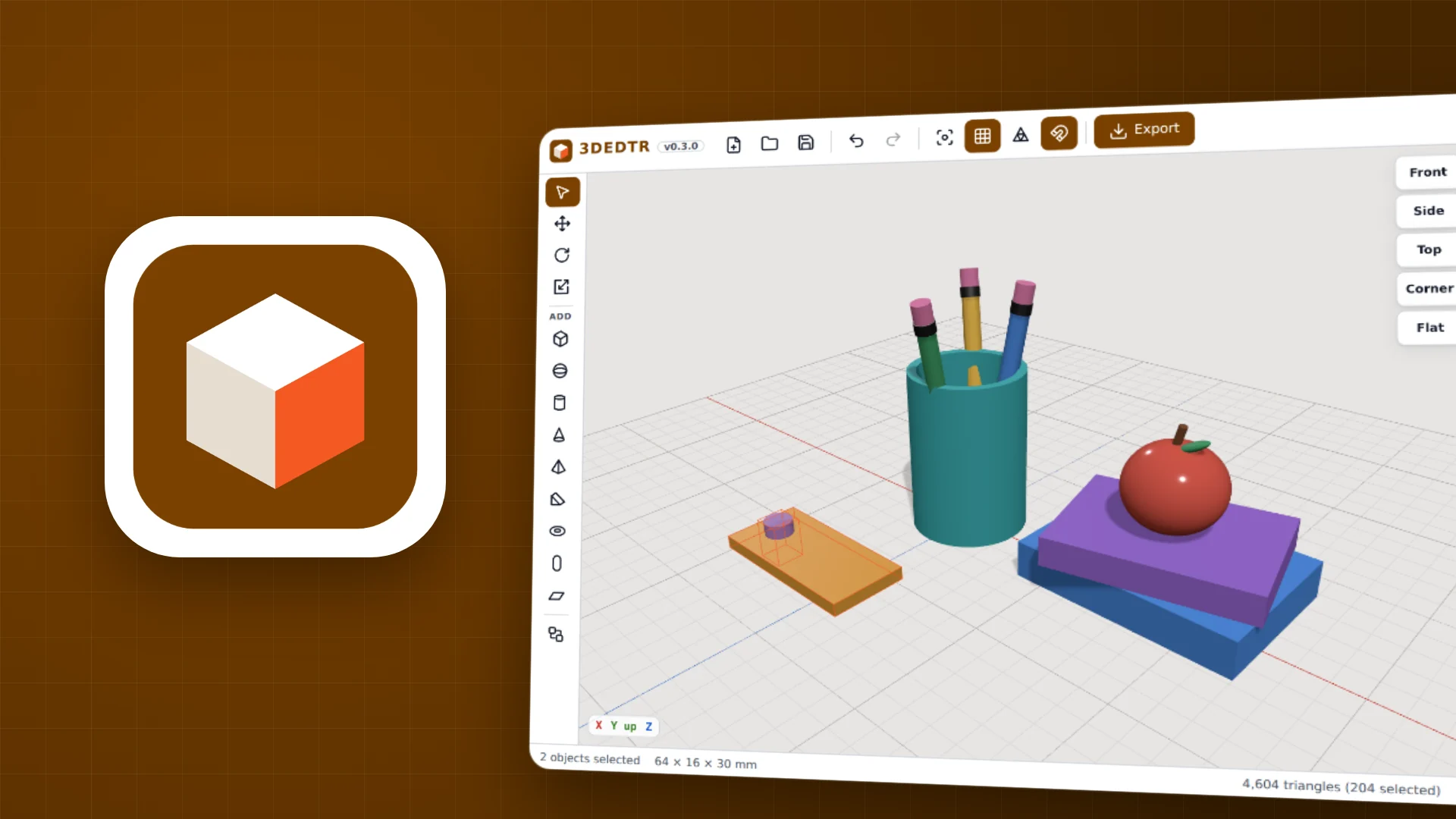
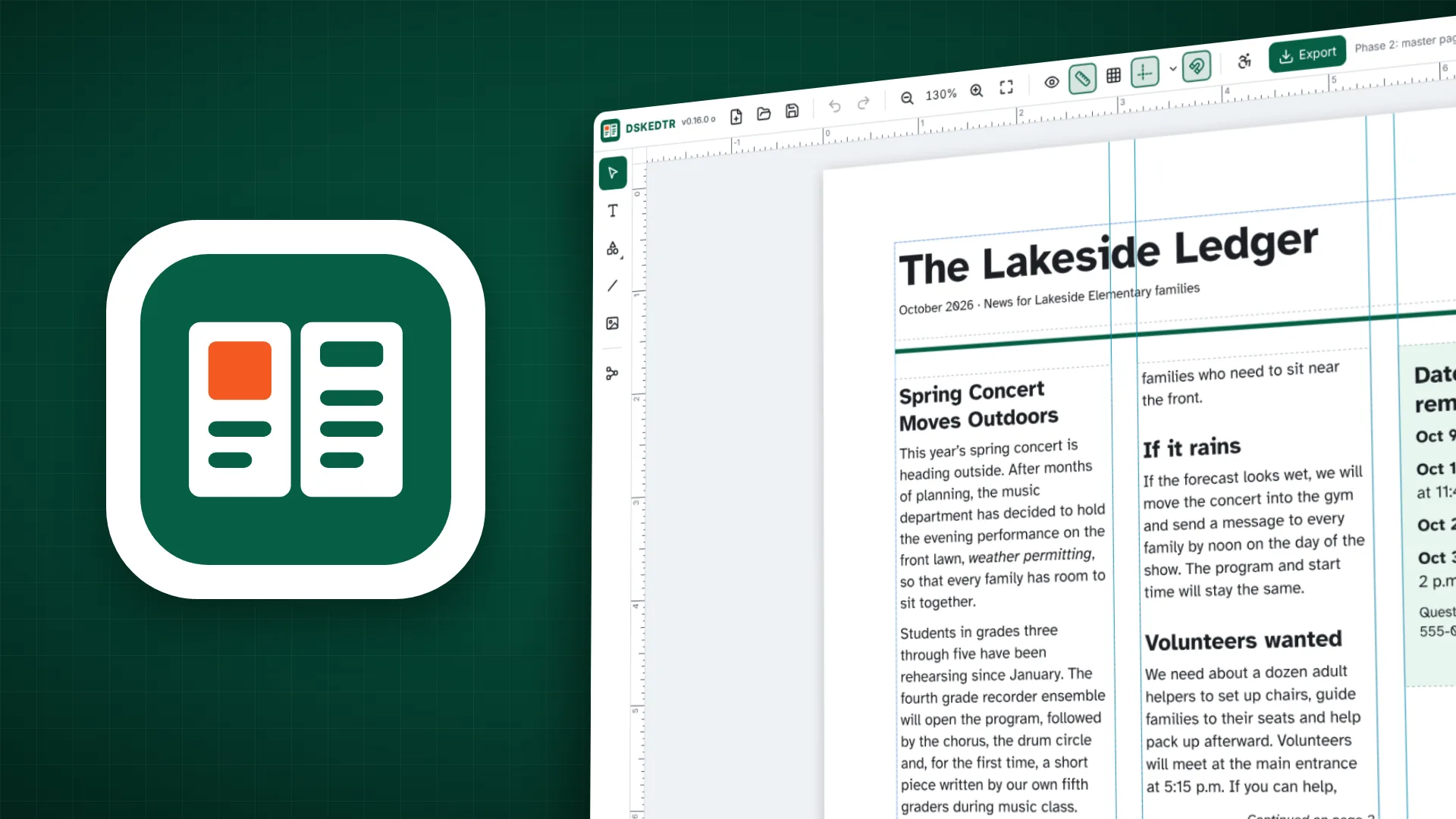
      Vector art with PowerPoint-style shape merging, 3D models ready for the school's 3D printer, and desktop publishing to fill the hole Microsoft Publisher left. Along the way the apps grew a shared look, shared help and shared habits, so learning one teaches you the rest.

    4. Late October

      For the front of the room

      Then came tools for teaching and presenting: animated lessons students can click through, a whiteboard for marking up worksheets and drawing on slides, and a teleprompter for recording course videos without losing your place.

    5. Now

      Shared in the open

      The apps were hosted privately while they grew up. Now they're ready to share: the source is on GitHub under the MIT license, so anyone can use them, learn from them or build on them.

    Free, and open to read

    Every line of every app is on GitHub under the MIT license. Read how it works, use it in your classroom, change it to suit you, or share it. The code is written to be followed by people who are new to coding, with plenty of plain-English comments.

    View on GitHub (opens in a new tab)

    Questions

    Are they really free?

    Yes. No trials, no ads, no accounts, no paid upgrades. The code is open source under the MIT license.

    Where do my files go?

    Nowhere. Files open inside your browser and save back to your own computer. Nothing is sent to a server, because there isn't one to send it to.

    Do they work without the internet?

    Yes, after the first time you open them. Each app keeps a copy of itself in your browser, and checks for a newer version when you're back online.

    Which browsers and devices?

    Chrome and Edge work best, including on Chromebooks and Android. Most apps work in Firefox and Safari too. SCRNCSTR, the screen recorder, needs Chrome or Edge.

    Can I install them?

    Yes. In Chrome or Edge, press Install on an app's start screen and it gets its own window and icon. On an iPhone or iPad, use Share, then Add to Home Screen.

    Are they accessible?

    That's built in from the start: everything works from the keyboard, controls are labelled for screen readers, text meets high-contrast (AAA) targets, and every app has a dark mode and respects "reduce motion".